> For the complete documentation index, see [llms.txt](https://docs.cortecs.ai/llms.txt). Markdown versions of documentation pages are available by appending `.md` to page URLs; this page is available as [Markdown](https://docs.cortecs.ai/web-console/logs.md).

# Logs

Inspect request metadata and troubleshoot inference activity

The Logs view lists inference requests made through Cortecs. Use it to confirm that a request reached the gateway, investigate failures, and compare operational metadata such as the model, provider, token usage, and cost.

Open [**Console > Logs**](https://cortecs.ai/userArea/console?tab=logs) to review requests for the current project.

{% hint style="info" %}
Cortecs logs operational metadata only. Prompts, model responses, and other request payload data are not stored or displayed.
{% endhint %}

***

## Find a request

Use the controls above the log table to narrow the request traces shown. You can:

* Select a time range of up to 24 hours.
* Search by member name or email address, API key name, model, provider, or error text.
* Filter by member, API key, model, provider, or HTTP status.
* Refresh the results to include recent requests.

Start with the narrowest relevant time range, then combine search terms with filters such as the member, API key, model, provider, or status.

Clear a filter to include all values for that attribute again.

<figure><img src="https://2211217319-files.gitbook.io/~/files/v0/b/gitbook-x-prod.appspot.com/o/spaces%2FYGsEKyV2Zq4Q8fEJQT40%2Fuploads%2Fgit-blob-955190e0e8676573eb31580d0f1370f8f2f34c4e%2Flogs-find-request.png?alt=media" alt="Logs view with search, time range, filter, and refresh controls"><figcaption><p>Search the logs, select a time range, apply filters, or refresh the results.</p></figcaption></figure>

Select the filter icon to filter by **Model**, **Provider**, **Status**, **API key**, or **Member**. Open a category and search for the value you want to include.

<figure><img src="https://2211217319-files.gitbook.io/~/files/v0/b/gitbook-x-prod.appspot.com/o/spaces%2FYGsEKyV2Zq4Q8fEJQT40%2Fuploads%2Fgit-blob-69821ee9e47cf2ffb28423a17d2dbb1938618e3a%2Flogs-filters.png?alt=media" alt="Logs filter menu with model, provider, status, API key, and member filters"><figcaption><p>Choose a filter category, then search for and select a value.</p></figcaption></figure>

***

## Understand traces and attempts

Each row represents a request trace. A trace groups all routing attempts made for the same request, including retries and fallback routing.

| Information            | What it helps you determine                     |
| ---------------------- | ----------------------------------------------- |
| **Timestamp**          | When an attempt was made, shown in UTC          |
| **Status**             | The HTTP response status for an attempt         |
| **Member**             | The project member associated with the request  |
| **API key and team**   | Which project workload sent the request         |
| **Model and provider** | Where Cortecs routed an attempt                 |
| **Error**              | Error information recorded for a failed attempt |
| **Tokens**             | The recorded token count                        |
| **Cost**               | The request cost in EUR                         |

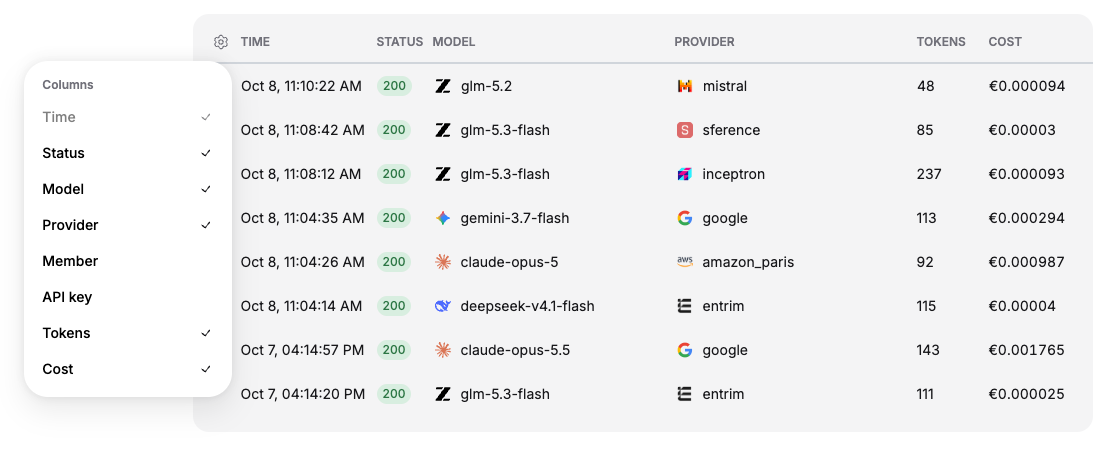
Select the settings icon in the table header to choose which columns are displayed. Enable or disable columns to focus the table on the information you need.

<figure><img src="https://2211217319-files.gitbook.io/~/files/v0/b/gitbook-x-prod.appspot.com/o/spaces%2FYGsEKyV2Zq4Q8fEJQT40%2Fuploads%2Fgit-blob-330e7d2129669ceedea23fdbac22c7cddf6a0b2c%2Flogs-column-settings.png?alt=media" alt="Column settings menu for choosing which log table columns are displayed"><figcaption><p>Use the settings icon to select the columns shown in the log table.</p></figcaption></figure>

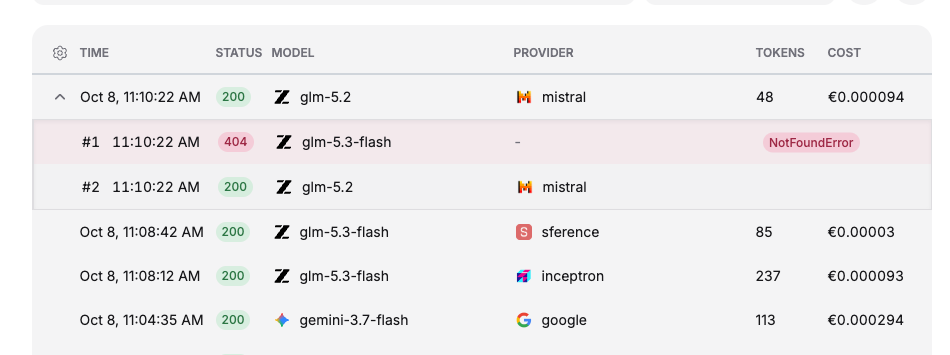
Expand a trace to view its attempts, ordered from oldest to newest. This makes it possible to see whether Cortecs retried the request or routed it to a fallback provider or model. Open an attempt to review its complete metadata.

<figure><img src="https://2211217319-files.gitbook.io/~/files/v0/b/gitbook-x-prod.appspot.com/o/spaces%2FYGsEKyV2Zq4Q8fEJQT40%2Fuploads%2Fgit-blob-9fded2b315e133ef66ea3d60bd70de7b49ab2e3a%2Flogs-expanded-trace.png?alt=media" alt="Expanded request trace showing a failed first attempt followed by a successful fallback attempt"><figcaption><p>Expand a trace to compare each routing attempt. In this example, the first attempt failed and the fallback attempt succeeded.</p></figcaption></figure>

Click a trace to open its detailed page. This view shows the status, token count, cost, timestamp, model, provider, member, team, API key, and key source. For a failed attempt, it also displays the error response, which you can copy when troubleshooting.

<figure><img src="https://2211217319-files.gitbook.io/~/files/v0/b/gitbook-x-prod.appspot.com/o/spaces%2FYGsEKyV2Zq4Q8fEJQT40%2Fuploads%2Fgit-blob-5fa50e2cb91bea9ae0f5ad58062253d7b6dae944%2Flogs-trace-details.png?alt=media" alt="Detailed log view showing request and access metadata with an error response"><figcaption><p>Open a trace to review its complete metadata and error response.</p></figcaption></figure>

## Compare logs with usage reports

Logs are best for investigating individual requests. Use [Usage](/web-console/usage.md) when you need aggregated totals and trends across teams, users, API keys, models, or providers.