> For the complete documentation index, see [llms.txt](https://docs.cortecs.ai/llms.txt). Markdown versions of documentation pages are available by appending `.md` to page URLs; this page is available as [Markdown](https://docs.cortecs.ai/web-console/budgets.md).
# Budgets
Budgets let you control how much your project spends on AI requests. You can set spending limits at different levels for the whole project, per team, per user in a team, per user, or per API key and choose daily, weekly, or monthly time windows. When a limit is reached, further requests are blocked until the window resets.
***
### Budget Scopes
A budget rule always targets a specific **scope** that determines what it applies to:
| Scope | What It Controls |
| ------------------------------ | -------------------------------------------------------------------- |
| **Project** | Total combined spend across the entire project |
| **Team - All teams** | The same limit applied separately to every team in the project |
| **Team - Specific team** | A limit for one selected team |
| **User - All users** | The same limit applied separately to every user in the project |
| **User - All users in a team** | The same limit applied separately to every user in one selected team |
| **User - Specific user** | A limit for one specific user |
| **API Key - All API keys** | The same limit applied separately to every API key in the project |
| **API Key - Specific key** | A limit for one specific API key |
{% hint style="info" %}
**"All teams"**, **"All users"**, and **"All API keys"** rules are especially useful as defaults. For example, setting an "All teams" monthly limit of €500 means every team gets its own €500/month allowance without having to create a rule for each team.
{% endhint %}
User rules become more specific in this order:
1. **All users** sets the default for every user in the project
2. **All users in a team** overrides that default for members of the selected team
3. **Specific user** overrides both defaults for that user
Overrides are applied separately for each period. For example, a specific user's monthly rule overrides their monthly team and all-users rules, but a daily team rule still applies if the specific user has no daily rule.
{% hint style="warning" %}
**DEPRECATION NOTE** If you created your API key before the 1st of May 2026, you need to rotate it (delete and recreate) for API key-level budget tracking to work correctly. Keys created after that date work automatically.
{% endhint %}
***
### Budget Periods
Each rule uses one of three time windows. Spend counters reset automatically at the start of each window (UTC time):
| Period | Resets At |
| ----------- | --------------------------- |
| **Daily** | Midnight UTC |
| **Weekly** | Monday 00:00 UTC |
| **Monthly** | 1st of the month, 00:00 UTC |
You can combine multiple periods on the same target. For instance, you could set both a daily limit of €5 and a monthly limit of €100 for a user.
***
### Viewing Budget Rules
To view the defined budget rules:
1. Navigate to **Settings**
2. Select the [Budgets](https://cortecs.ai/userArea/console?tab=budgets) tab.
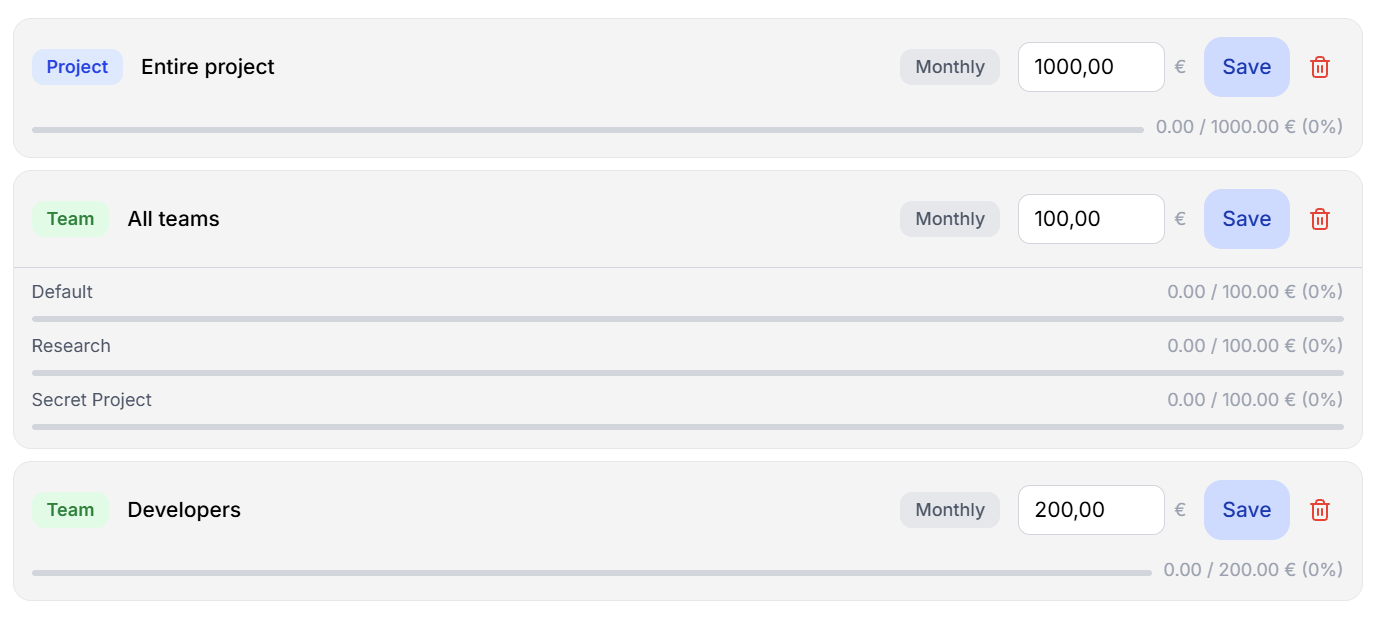
The Budgets tab in your project settings shows all active budget rules as cards. Each card displays:
* A **scope** (blue for Project, green for Team, purple for User, amber for API Key)
* The **target** (e.g. Project, a user's name, or an API Key)
* The **period** (Monthly, Weekly, or Daily)
* The **current limit** in EUR
* A **utilization bar** showing how much of the budget has been used
***
### Creating a Budget Rule
{% hint style="warning" %}
Only project administrators can create, edit, or delete budget rules. Regular users can view the rules that apply to them and their own utilization.
{% endhint %}
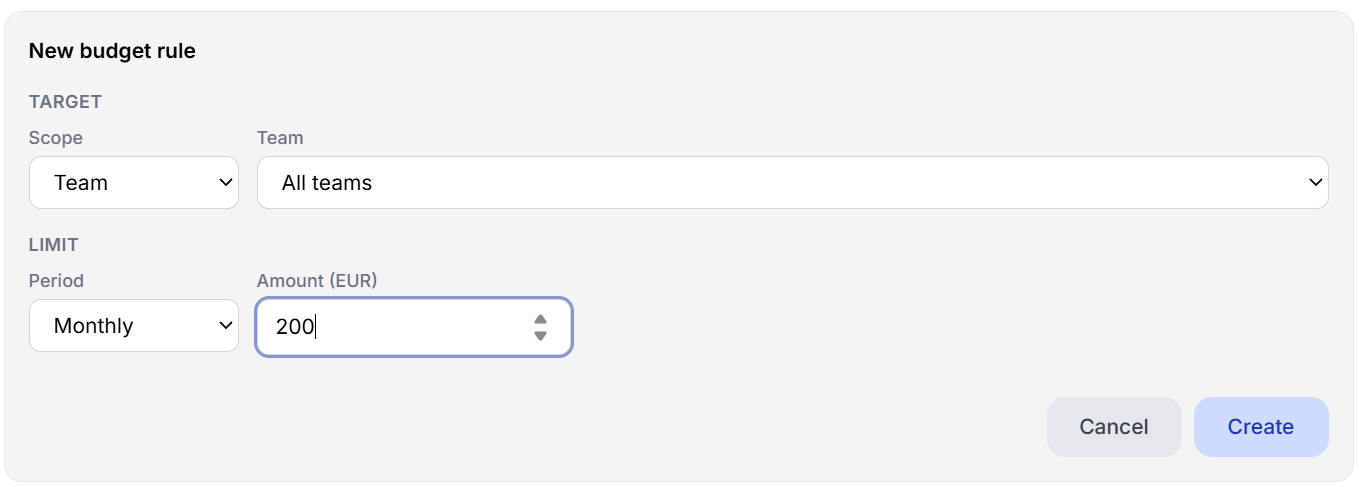
1. Click the **"Add budget rule"** button at the bottom of the budget rules list
2. Configure the **Target** section:
* **Scope**: Choose Project, Team, User, or API Key
* **Team** *(appears for Team and User scopes):* For Team scope, select a specific team or leave it as "All teams" to give every team a separate limit. For User scope, selecting a team creates a separate allowance for every user in that team
* **User** *(appears for User and API Key scopes):* Under User scope, leave both selectors at "All teams" and "All users" to create the project-wide per-user default. Select a team and leave "All users" selected to create an all-users-in-team rule. Selecting a specific user creates a specific-user rule instead
* **API Key** *(appears when a specific user is selected under API Key scope):* Pick one of the user's API keys
3. Configure the **Limit** section:
* **Period**: Choose Daily, Weekly, or Monthly
* **Amount (EUR)**: Enter the spending cap (minimum €0.01)
4. Click **Create**
If a rule already exists for the same target, the new period will be added alongside existing ones rather than replacing them.
Apply the same separate allowance to every team or select one named team.
***
### Editing a Budget Rule
To update an existing rule's limit:
1. Change the **EUR amount** in the input field on the rule card
2. Click **Save**
The new limit takes effect immediately. Current utilization is not reset, only the cap changes.
***
### Deleting a Budget Rule
To remove a rule:
1. Click the **trash icon** on the rule card
2. The rule is removed immediately
If the rule was the last period on a target (e.g. you delete a user's only monthly limit), the entire budget configuration for that target is cleaned up automatically.
***
### What Happens When a Budget Is Exceeded
When a request would cause spending to exceed a budget limit:
* The request is **blocked** with an error message indicating which budget was exceeded
* The message includes the **time remaining** until the budget window resets
* Once the window resets (e.g. a new day, week, or month), spending is allowed again
{% hint style="info" %}
Budget limits are enforced across all applicable scopes. A request can be blocked by any matching rule for example, even if a user's personal budget has room, the request will be blocked if the project-wide budget is exhausted.
{% endhint %}
***
### Visibility for Non-Admin Users
Regular (non-admin) users can see:
* ✅ Project-wide budget rules and utilization
* ✅ "All teams" rules for teams they belong to
* ✅ "All users" and "All API keys" rules with **their own** utilization only
* ✅ Budget rules that specifically target one of their teams
* ✅ Budget rules that specifically target them
They **cannot** see budget rules or utilization data for other users or teams to which they are not assigned.
***
### Automatic Cleanup
Budget rules are automatically removed when their target no longer exists:
* Removing a member from a **team** deletes budgets associated with that member's team assignment
* Deleting a **team** deletes all budget rules targeting that team
* Removing a **user** from the project deletes all budget rules targeting that user
* Deleting an **API key** deletes the budget rule for that key
* Deleting a **project** removes all associated budget rules